
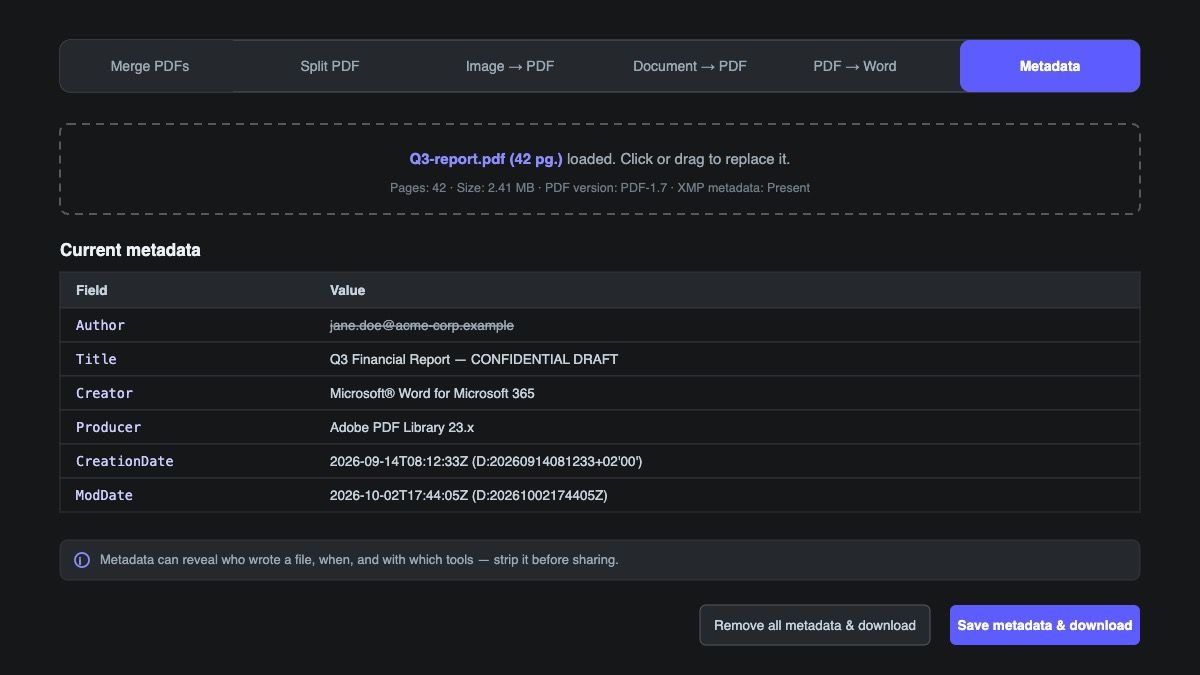
Every PDF you share carries an invisible label: who created it, which software produced it, when it was written and last modified. Most of the time that's harmless — a convenience for document management systems and search indexing. But that same label has embarrassed more than a few organizations: drafts circulated with internal authors attached, contracts revealing which department edited them last, reports exposing the exact toolchain used to produce them. Our free PDF metadata tool lets you see exactly what a file says about itself, fix what's wrong, or strip it entirely — in your browser, without uploading anything.
The Two Places PDF Metadata Hides
PDF metadata isn't one thing — it's two parallel stores, and cleaning a file properly means handling both. The older mechanism is the document information dictionary: a set of key-value pairs referenced from the file's trailer, with standard keys like Title, Author, Subject, Keywords, Creator, Producer, CreationDate, and ModDate. Applications can also invent their own keys — Company, SourceModified, internal IDs — which is why a raw view of the dictionary sometimes reveals fields you didn't know existed.
The newer mechanism is the XMP metadata stream: an XML packet embedded in the document catalog that duplicates the classic fields and extends them — think dc:creator, xmp:ModifyDate, pdfaid:part conformance flags, and tool-specific properties from Adobe, Microsoft, or the producing library. Deleting the info dictionary but leaving the XMP stream means the metadata is still there — just in a format most people don't check. Our tool shows whether a file contains XMP and removes it along with everything else when you strip.
What Each Field Actually Means
The fields look self-explanatory but a few have subtleties worth knowing:
- Title — what viewers show in the window title and what Google often uses as the result headline for indexed PDFs. Frequently blank, frequently wrong (Word exports love keeping a stale template title).
- Author — usually the name or login of whoever created the original document. Office apps fill this from the registered user — including personal account names you may not want on a published file.
- Subject / Keywords — free-form description and indexing terms; mostly used by document management systems.
- Creator — the application that produced the original content ("Microsoft® Word for Microsoft 365").
- Producer — the library that wrote the PDF bytes ("Adobe PDF Library 23.x", "iText", "pdf-lib"). Creator and Producer often differ — a useful fingerprint of a file's toolchain.
- CreationDate / ModDate — timestamps in PDF's
D:YYYYMMDDHHmmSSformat with timezone. ModDate in particular quietly records when someone last touched the file — occasionally awkward when a "final" document shows edits after a deadline.
Inspect a PDF's Metadata: Step by Step
- Open the PDF Metadata tool.
- Drop a PDF onto the drop zone. It loads locally — check your network tab if you like; nothing is uploaded.
- The summary line shows page count, file size, PDF version, and whether an XMP stream is present.
- The Current metadata table lists every entry in the info dictionary, sorted alphabetically — including non-standard fields the tool didn't invent.
If the table is empty, the file has no document info dictionary — already clean. XMP presence is flagged separately, since a file can have an empty info dictionary and still carry an XML metadata packet.
Editing Metadata the Right Way
Below the table, each standard field is editable: fix a wrong title so it displays correctly in viewers, correct the author on a jointly-produced document, or add keywords for an archival system. Two details matter:
- Empty fields are deleted. Clearing a field doesn't write an empty string — it removes the key from the document entirely, which is what you usually want for Author or Creator.
- Your values are written verbatim. Some PDF libraries stamp their own name into Producer every time they save a file. The tool saves with metadata updates disabled, so what you type — including a blank Producer — is exactly what the file contains.
Custom fields (anything outside the standard eight) are left untouched — you can see them in the table, and they survive an edit, but they can't be changed individually. If one of them needs to go, use the full strip.
Stripping Everything Before You Share
Remove all metadata & download wipes both metadata stores in one pass: every entry in the info dictionary, the dictionary reference itself, and the XMP stream in the document catalog. The output file opens identically — pages, text, images, and layout are byte-for-byte preserved — it just stops introducing itself.
This is the right move before publishing a report, sending a proposal, or uploading a document to a public repository. Internal tooling conventions leak more than people expect: an Author of "jane.doe" is a username; a Producer naming a specific converter narrows your stack; timestamps reconstruct your working hours.
When Metadata Removal Isn't Enough
Stripping metadata is privacy hygiene, not redaction — the distinction matters. Document-level removal does not touch:
- Comments and annotations. Sticky notes, highlights, and markup each carry their own author and date. A scrubbed file can still name its reviewers in the margin.
- Hidden content. Covered text, off-page objects, optional content layers, and deleted-but-not-purged revisions can persist in the file. This is the classic "black marker" redaction failure — the text is still under the rectangle.
- Embedded files and thumbnails. Attachments packaged inside the PDF and page preview images can carry their own data.
- The content itself. The fastest leak is the one you can read: headers, footers, document IDs, tracked changes exported to PDF.
For anything genuinely sensitive, treat metadata stripping as the last step of a review that also checks annotations and page content — and verify the output by dropping it back into the tool to confirm the stores are actually empty.
Try It
The PDF metadata viewer, editor, and remover is one of six PDF utilities on the site — all client-side, no signup, no watermarks. If you need to reshape the file itself, the Merge and Split tools handle structure, while Document to PDF and PDF to Word cover the conversion round-trip.
Frequently Asked Questions
What metadata does a PDF contain?
A document information dictionary with title, author, subject, keywords, creator, producer, and creation/modification timestamps — plus optional custom fields added by whatever wrote the file. Most PDFs also embed an XMP metadata packet (an XML stream) duplicating and extending those properties.
What is the difference between Creator and Producer?
Creator names the application that authored the original content (e.g., Microsoft Word); Producer names the library or engine that converted it to PDF (e.g., Adobe PDF Library, iText). A Word document exported through a third-party converter will often show different values for each.
Does removing PDF metadata change the document?
No — only the document information dictionary and the XMP metadata stream are removed. Pages, text, images, fonts, and layout are preserved exactly; the file renders identically.
Does removing metadata fully anonymize a PDF?
No. It removes document-level properties — author, timestamps, tool names. Traces stored elsewhere remain: author names on comments and annotations, embedded files, hidden layers, and anything printed in the page content itself. For sensitive files, strip metadata after reviewing the visible content too.
Is it safe to edit PDF metadata online?
With a client-side tool, yes — the file is parsed and rewritten in your browser and never transmitted. With server-based tools, your document is uploaded, processed, and downloaded again, which means it passes through infrastructure you don't control. You can verify the difference yourself in the browser's network tab.