Merging PDFs is probably the single most common PDF operation: combining a scanned contract with its annexes, bundling invoices for an expense report, assembling a report from separate chapters, or joining signed pages back into the original document. Adobe Acrobat can do it — for a subscription. Dozens of websites can do it — by uploading your files to their server. Neither is necessary. Modern browsers can assemble a merged PDF entirely on your device, which is exactly what our free merge PDF tool does.
Merge, Combine, Join, Concatenate — Same Thing
Search results treat these as different intents, but they all mean the same operation: take the pages of PDF A and the pages of PDF B and write them into a single output file, in order. Technically, a merge copies each source page into a new document's page tree — the page content itself (text, images, fonts) is carried over unchanged. That is why a good merge tool doesn't degrade quality: there is no rendering step, no recompression, and no watermark. The output pages are byte-for-byte identical to the inputs.
Merge Two PDFs in Your Browser: Step by Step
- Open the Merge PDF tool.
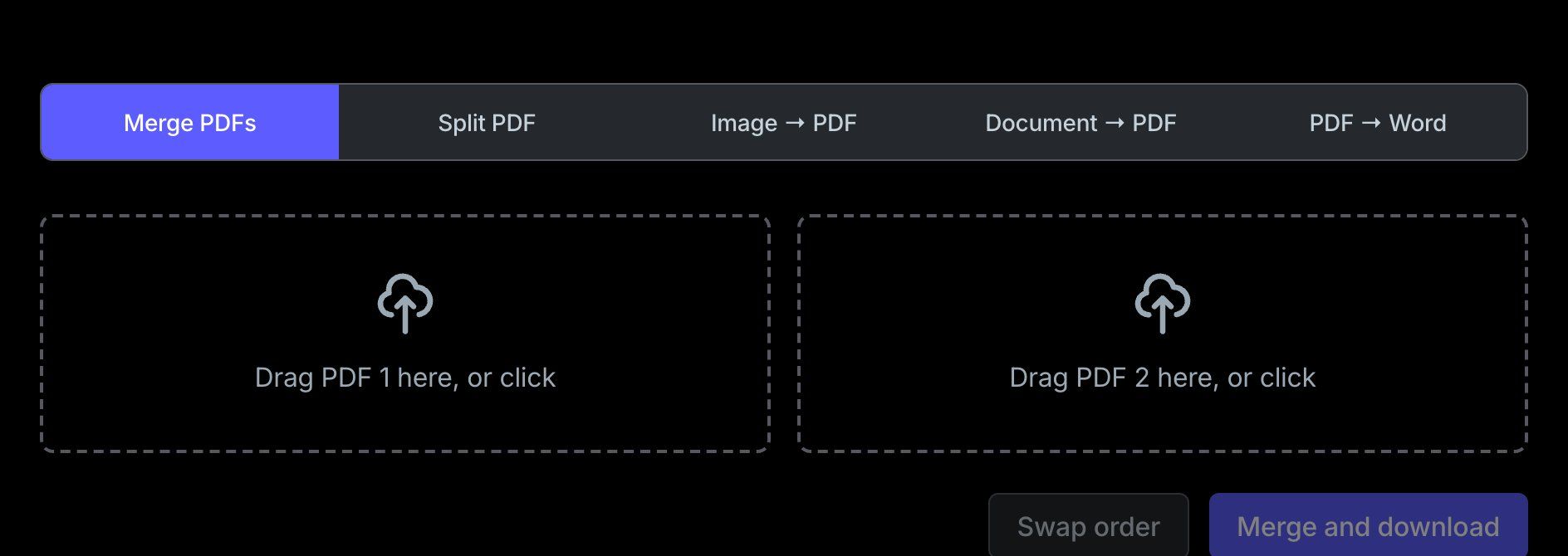
- Drag the first PDF into the left drop zone (or click to browse). The tool shows the file name and page count so you can confirm it read the right document.
- Drag the second PDF into the right drop zone.
- Check the order — pages run first file, then second file. If they're reversed, click Swap order.
- Click Merge and download. The merged file downloads as
merged.pdf.
Everything happens locally in your browser using pdf-lib, an open-source PDF library. You can verify it yourself: open your browser's network tab, drop the files in, and watch — no upload request ever fires.
Combining More Than Two PDFs
Need to join three or more files? Chain the merges: merge files 1 and 2, then drop merged.pdf back into a drop zone together with file 3, and repeat. Each pass preserves the accumulated page order, so A + B + C comes out as A, then B, then C. It takes a few extra seconds per file, but for the typical case — a handful of documents — it's far faster than installing desktop software.
Getting the Page Order Right
The only thing a merge can get "wrong" is order — and it only follows the order you give it. Two habits prevent most mistakes:
- Name files so they sort correctly —
01-cover.pdf,02-report.pdf,03-appendix.pdf. Then dropping them in filename order is automatic. - Check the page counts shown under each file name before merging. If the 40-page contract landed in the second slot but belongs first, use the swap button instead of re-selecting.
If only part of a document belongs in the merge — say, pages 3–7 of a 60-page report — run it through the Split PDF tool first, then merge the extracted pages.
Edge Cases That Trip Merges Up
- Password-protected PDFs. There are two kinds of PDF protection: an owner password (restricts printing/editing but opens freely) and a user password (the file won't even open without it). Owner-protected files usually merge fine. User-protected ones can't be read at all — remove the password in your PDF viewer first.
- Mixed page sizes and orientations. Perfectly legal in PDF — a landscape A4 chart can sit between portrait pages. A page-level merge preserves each page's original size and rotation, so nothing gets cropped or squeezed.
- Scanned files. A scan is just a page-sized image inside a PDF — merges work identically, but file size adds up fast. If you're combining scans to hit an email attachment limit, merging won't shrink anything; you need compression or rescanning at a lower DPI.
- Forms and signatures. Merging keeps form fields and digital signatures intact on their pages, but two source files that both contain fields with the same name can interact unexpectedly when filled in the merged output — worth a quick check before distributing.
- Very large files. Because browser-based merging works in memory, a pair of 200 MB scans may be slow on an old laptop. There's no server-imposed limit — just your device's RAM.
When You Actually Need Split + Merge
Real workflows are rarely "A then B." Inserting a signed page into the middle of a contract means: split the original at the insertion point, then merge the pieces in order — first half, signed page, second half. The split tool cuts at any page; the merge tool stitches the results back together. The same split-merge pattern handles removing a page (split around it, merge the rest) and reorganizing multi-document bundles.
Why "No Upload" Actually Matters
Most free online PDF mergers work by sending your files to a server, processing them there, and returning a download link. The privacy policies vary, but the mechanics don't: your document passes through infrastructure you don't control, sits in someone else's storage (however briefly), and travels over the wire twice. For a grocery list that's fine. For a contract, medical record, financial statement, or anything under an NDA, it isn't. Client-side merging removes the question entirely — the file never leaves your machine, so there's nothing to leak, log, or breach. That's also why the tool works offline once the page has loaded.
Try It
The free PDF merger is one of five PDF utilities on the site — all client-side, no signup, no watermarks. If your source files aren't PDFs yet, the Image to PDF and Document to PDF converters get them there, and PDF to Word handles the reverse trip when you need to edit the merged result.
Frequently Asked Questions
Is it safe to merge PDF files online?
It depends on where the processing happens. Server-based tools upload your documents to their infrastructure — fine for public flyers, questionable for contracts or personal documents. Our tool runs entirely in your browser: files are read locally, merged locally, and downloaded locally. Nothing is transmitted, which you can confirm in your browser's network tab.
How do I merge more than two PDFs?
Merge them in stages: combine files 1 and 2, download the result, then merge that output with file 3, and so on. Each pass appends pages in order, so the final document reads A → B → C → D. For occasional use this is quick; if you routinely merge dozens of files, a desktop tool with multi-file queuing may suit you better.
Does merging PDFs reduce quality or add watermarks?
Neither — at least with a proper merge. Merging copies whole pages into a new document structure without re-rendering them, so text stays selectable, images keep their resolution, and no watermark is added. If a tool asks you to "pay to remove the watermark," the watermark was added by the tool, not by the merge.
Can I merge a password-protected PDF?
It depends on the protection type. PDFs protected only with an owner password (which restricts printing or editing) generally merge without issues. Files with a user password — the kind you must type just to open — can't be read by the merger at all. Open the file in a viewer that accepts the password and re-save it without protection first.
How do I change the order of pages when combining PDFs?
The merged document follows the order of the input files: everything from file 1, then everything from file 2. To reorder whole documents, swap the files before merging. To reorder individual pages — or pull just a few pages out of a large file — split the PDF first, then merge the pieces in the order you want.