CRM migrations rarely fail on the tool — they fail on dirty data and broken links: contacts orphaned from their companies, deals pointing at stages that no longer exist, owner fields matched to departed reps. A disciplined sequence prevents all of it. This checklist works for any switch — spreadsheet to first CRM, HubSpot to Zoho, Salesforce to OG CRM — and compresses into an afternoon for clean datasets under ~10k records. If you are still deciding where to land, start with our CRM buyer's guide.
Phase 1 — Audit and Scope
Before touching an export, inventory what you actually have: objects (contacts, companies, deals, tickets, activities, notes, custom objects), record counts per object, which fields are populated versus abandoned, pipelines and stage definitions, automations and assignment rules, integrations (email, forms, billing, analytics), and which reports management actually reads. Then sort everything into three buckets:
- Migrate — active contacts, open deals, current accounts, anything live workflows need.
- Archive — records you must retain for legal or reporting reasons but users never open. Keep them in an approved archive, not the live CRM.
- Leave behind — duplicates, test records, spam, dead custom fields. Every record you don't move is a record you don't have to clean.
Agree on go/no-go criteria now: what record-count tolerance is acceptable, what "done" looks like. That decision is much harder to make mid-cutover.
Phase 2 — Field Mapping
The mapping table is the migration's contract: every source field, its destination, its type, and the transformation rule. The details that bite: picklist values merge or split (24 old industry values into 9 new ones — write every mapping explicitly); dates in the wrong format import blank in some tools; record owners must be matched to users who exist in the target — create every user first, including departed reps whose records need reassignment; and preserve the old system's unique ID in a custom field, so imported records can be matched and re-run safely. Most importantly, define the associations: contact→company, deal→company, activity→contact. Losing the links is what "losing data" actually means.
Phase 3 — Clean Before You Move
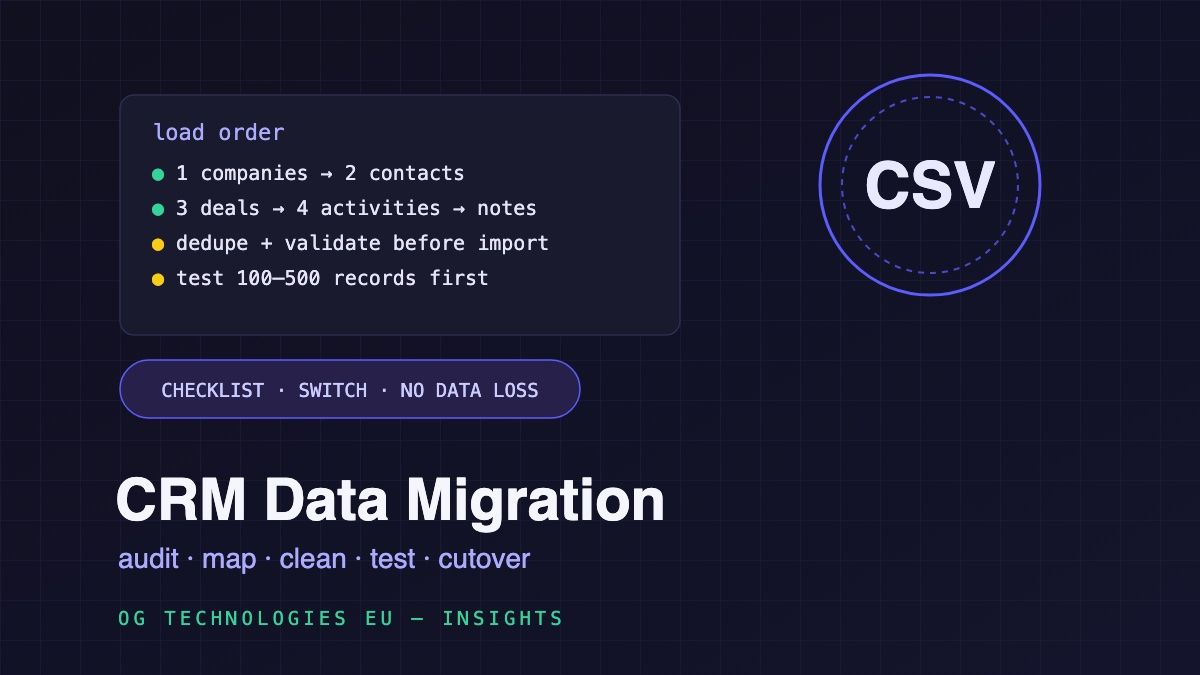
Dirty data stays dirty in the new system — it just costs more there. The minimum pass: deduplicate contacts by email (and companies by domain), validate email syntax so bad addresses don't poison your sender reputation on day one, and standardize phone, date, and picklist formats. Export to CSV, run it through the free CSV Deduplicator and Email List Validator, then decide which dead records join the "leave behind" bucket. This is also the moment for a full backup export of the old system — before anything changes.
Phase 4 — Load Order and Test Import
Order matters because children need their parents to exist: companies → contacts → deals → activities → notes. A contact imported before its company loses the link (or creates a blank company you'll merge manually later). Then run a test import of 100–500 real records — deliberately awkward ones: long notes, contacts at multiple companies, multi-currency deals, deprecated picklist values. Verify by hand against the old system: owners, dates, amounts, associations. Ten records checked fully beats a thousand checked at a glance.
Phase 5 — Rebuild What Doesn't Transfer
Data migrates; logic doesn't. Automations, sequences, assignment rules, email templates, reports, and integrations all need rebuilding in the target system — give each an owner and a date before cutover. Reconnect integrations (email sync, web forms, billing, support desk) and test each with a real record, not a demo one. Only the day-one automations need to be live at cutover; the rest can follow within two weeks.
Phase 6 — Cutover and Validation
Freeze edits on the old system, run the full import in load order, then validate: record counts reconcile per object, associations are intact, owners correct, and a spot-check of ten complete records matches the source exactly. Keep the old system read-only for two to four weeks — it is your fallback and your audit trail. Only then retire it, keeping the final backup export under your retention policy.
Frequently Asked Questions
How long does a CRM migration take?
For clean data under ~10k records: an afternoon — export, dedupe, map, import, spot-check. For messy, multi-object datasets with automations and integrations: two to six weeks, most of it spent in phases 1–3 deciding what to move and how fields map, not in the import itself.
What usually doesn't migrate?
Attachments and files on records (most importers skip them entirely — plan a separate workstream), email and call history beyond recent activity, automation rules and sequences, report definitions, and integrations. Audit each one and assign a rebuild owner before cutover.
How do I keep contacts linked to their companies?
Two rules: preserve the source system's unique IDs in a custom field so relationships can be re-established programmatically, and respect load order — companies before contacts, deals after both. A child record imported before its parent either loses the link or creates a hollow duplicate you will merge by hand.
Should I migrate all historical data?
Usually no. Migrate what live workflows need; archive what legal or reporting requires; leave the rest. Full-history imports slow the migration, clutter the new CRM, and import your old data-quality problems. Check your jurisdiction's retention rules before deleting anything.
Do I need paid migration services?
Not for a CSV-based move of contacts, companies, and deals — every mainstream CRM imports CSV free, and the checklist above covers the failure modes. Paid help earns its fee when objects are exotic (custom objects, heavy attachment volumes), history must be preserved via API, or downtime must be near zero.